Business Mastery: Profile & Identity
Set up your business identity, tax apportionment, and automated holiday billing rules.
Business Mastery: Profile, Settings & Contracts
Correct business configuration is what separates a childminding business that runs itself from one that requires constant manual correction. Configure your settings once and KinderStart generates accurate invoices every month, applies funded hours at £0.00 automatically, and calculates HMRC-compliant expense deductions without you touching a spreadsheet. For example: a child attending 40 hours per week at £7.50, with 15 funded hours, produces a parent invoice of £187.50 — not £300.00 — because KinderStart reads your funded hours window and deducts correctly.
Before you begin, verify your Local Authority registration. KinderStart uses your LA details to apply the correct funded hours rate and window. Without this, KinderStart cannot calculate funded deductions accurately.
Your business settings act as the Source of Truth for your setting. Configure your defaults once and KinderStart automates contract generation, invoice production, and holiday billing — keeping every parent relationship consistent and legally compliant.
Step 1: The Business Control Centre
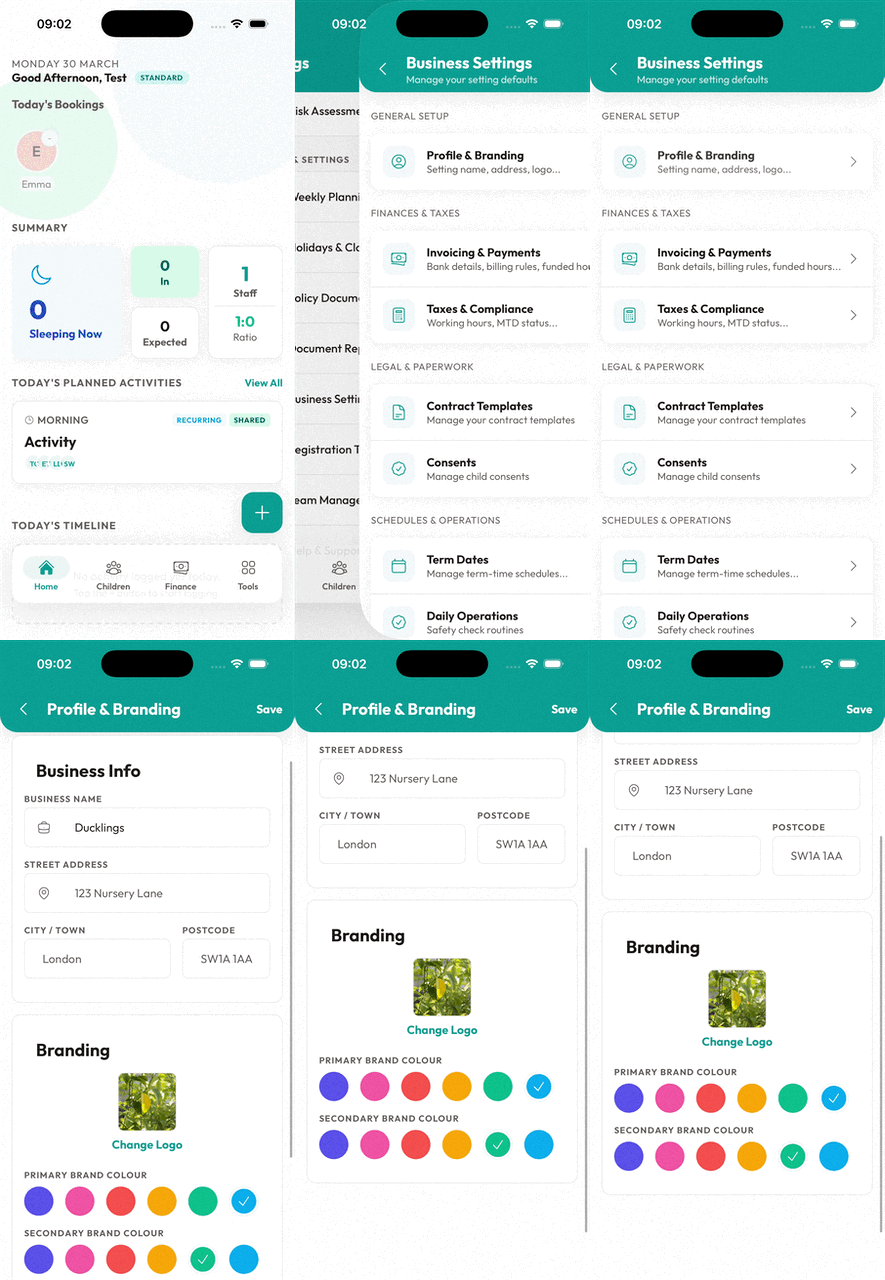
Navigate to Tools > Business Settings to manage your core setting identity.
- Business Profile: Tap your setting name to edit your branding, logo, and address. KinderStart injects this information into the header of every PDF contract and invoice you generate.
- Term Dates: Define your academic year and school holidays. KinderStart uses these dates to apply "Holiday Rates" to your invoices.
Step 2: Invoicing & Payment Defaults
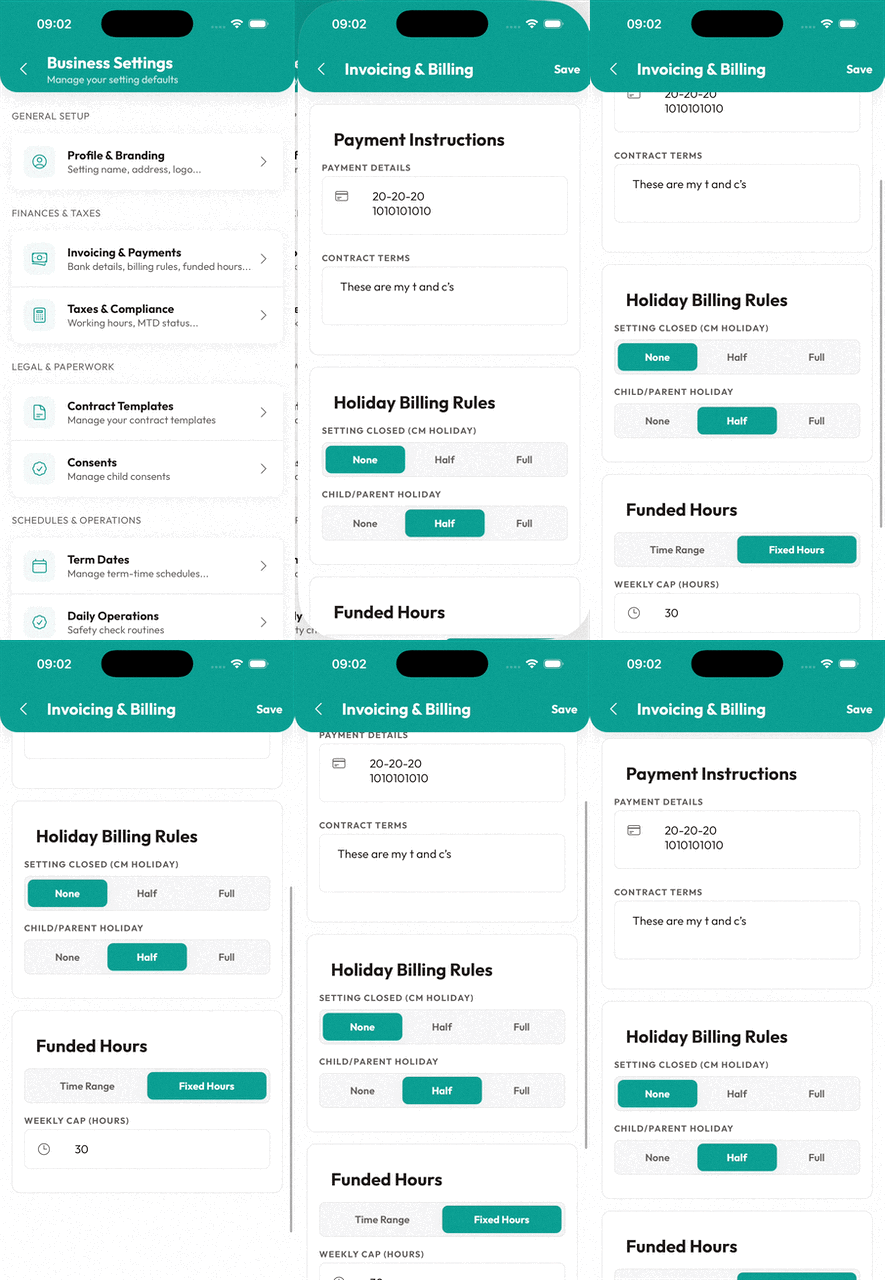
The Invoicing & Payments screen is where you define how you get paid. These settings become the default for every new child you onboard.
- Payment Details: Enter your bank transfer information here. KinderStart displays it on the footer of every invoice.
- Holiday Billing Rules: Set different rates for when you are closed (CM Holiday) vs. when the child is away.
- Example: Many childminders charge "Full Fee" if the child is on holiday, but "No Fee" if the setting is closed.
- Consumables: Set a default daily charge for meals, nappies, or trips.
Step 3: From Settings to Contract
When you generate a contract for a new child, KinderStart pulls your business defaults to create a starting point.
- Automatic Rates: KinderStart applies the hourly rate you defined in settings. Override it for specific children if needed.
- Holiday Logic: KinderStart embeds the rules you chose (None/Half/Full) into the contract clauses, binding the parent to your specific billing policy.
- Digital Signatures: Upload your digital signature in settings and KinderStart makes it ready to apply to the contract as soon as the parent signs on their device.
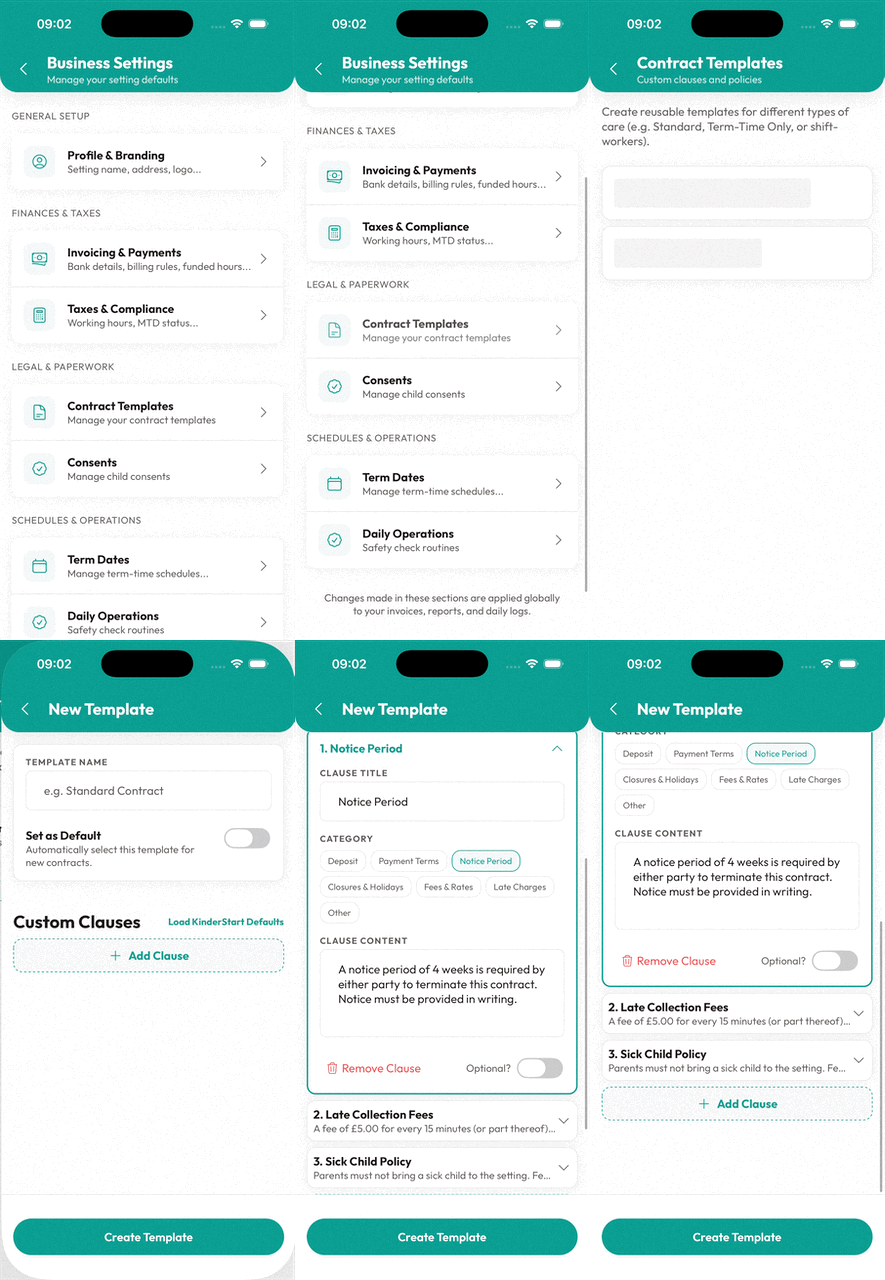
💡Pro Tip: The 'Master' Template
Use the Contract Templates tool to create different "types" of contracts (e.g., Year-Round vs. Term-Time Only). Each template can have its own specific set of clauses while still using your global business branding.
Setting Up Funded Hours
Funded hours are free to parents by law. Configure this section correctly and KinderStart deducts the funded portion from every invoice at £0.00 — with no manual intervention required.
Prerequisite: Confirm your Local Authority registration number and your LA's published hourly rate before starting. Your LA rate and funded hours window determine every funded deduction KinderStart calculates.
- Open Business Settings.
- Tap "Invoicing & Payments".
- Scroll to "Funded Hours Configuration".
- Toggle "I Offer Funded Hours" to ON.
- Select the types you offer:
- ☑ 15 Hours Universal Entitlement
- ☑ 30 Hours Extended Entitlement
- ☐ 2-Year-Old Funding (if applicable)
- Enter "Your Hourly Rate" — for example, £6.50.
- Enter "Local Authority Rate" — for example, £4.50. KinderStart calculates the top-up (£2.00/hour) automatically.
- Set the Funded Hours Window to your LA's approved time bracket (e.g., 09:00–15:00). Check your LA's current guidance — the window varies by authority.
- Toggle "Stretch Offer":
- ON: KinderStart spreads 15/30 hours across 52 weeks.
- OFF: KinderStart applies 15/30 hours only during 38 term-time weeks.
- Tap "Save".
KinderStart now shows the "Funded Hours" option on every new contract, deducts funded hours from invoices at £0.00, and tracks LA funding separately in your Finance Dashboard.
LA Registration
Verify your Local Authority registration before enabling funded hours. An unverified or incorrect LA registration number causes KinderStart to apply the wrong funded rate — resulting in incorrect invoices and potential clawback liability.
✅Ofsted Readiness
Maintaining a clear, branded, and consistent set of contracts and business policies is a key indicator of a well-managed setting during an Ofsted inspection.
Ready to try KinderStart?
Start your free trial and put these guides into action.
No credit card required • 7-day free trial
KinderStart strives for accuracy. Competitor features and pricing comparisons are based on publicly available information as of May 2026. Details are subject to change by respective providers.